|
Click the button to skip ahead:
|
Create Docket Form |
| Read FleetAdmin - Forms for how to create the Docket Form. |
Review Dockets |
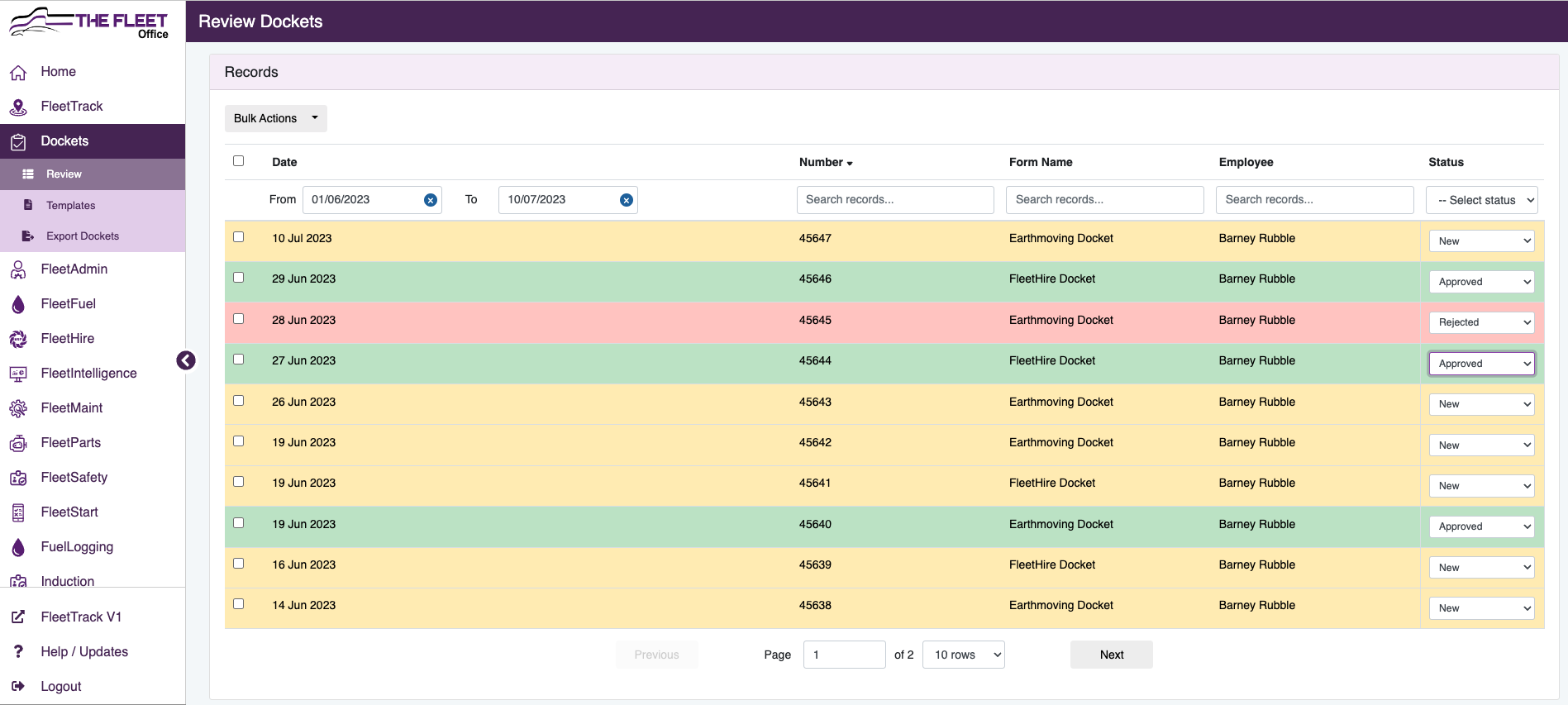
- Click on Review
- Use the search fields to filter required dockets. This can be done via Date, Docket Number, Form Name, Employee or Status.
|
|
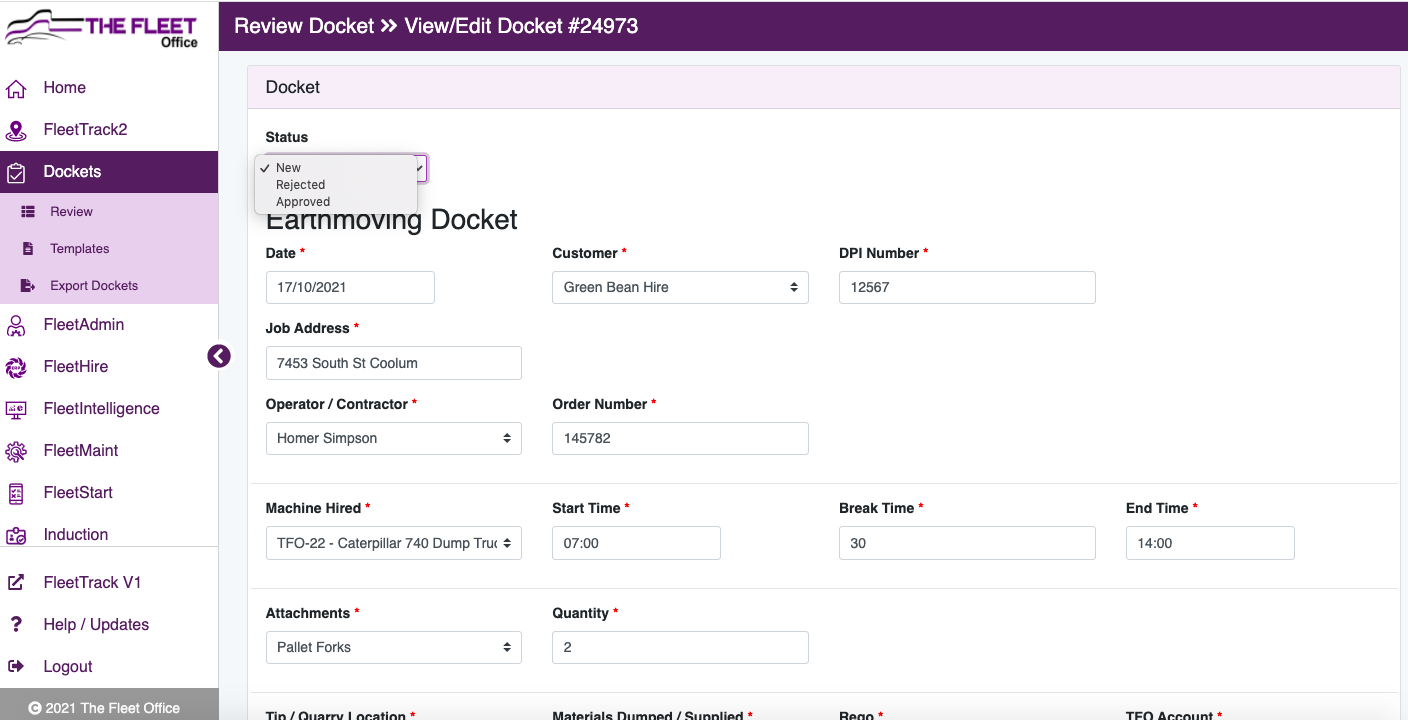
- Click on Docket to open
- Review entered data
- All data can be adjusted if required from this screen
- Use the Status dropdown to approve or reject the Docket
- Click Save
- Any changes will be recorded in the "Show History" section at the bottom of the docket
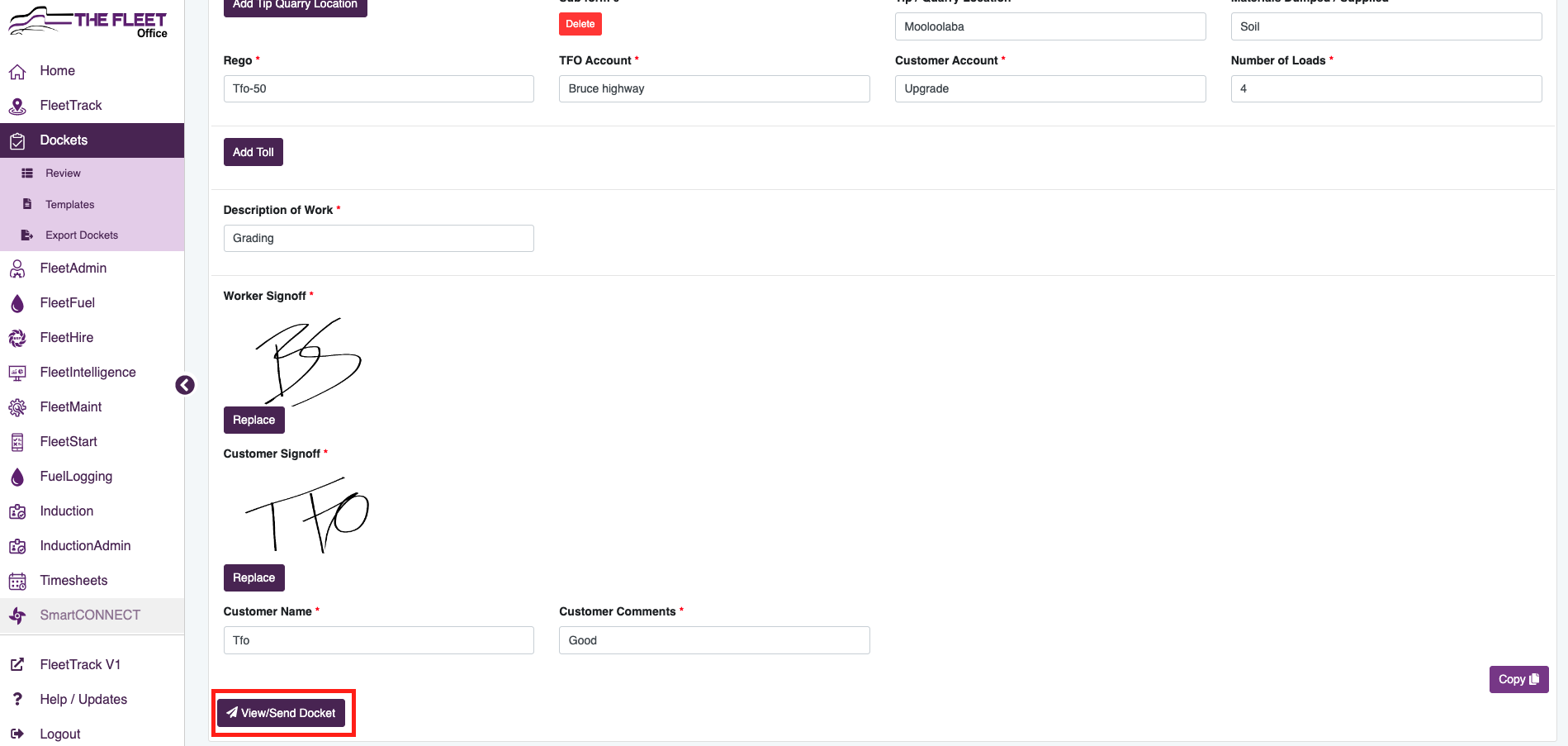
- Click on View/Send Docket to email
|
|
Creating Docket PDF Templates |
| Go the FleetAdmin - Creating PDF Templates for how to create Templates |
Creating Docket Email Templates |
| Go the FleetAdmin - Creating Email Templates for how to create Templates |
View / Email Docket Individually |
- From Review go into required Docket
- Scroll to the bottom of Docket to View/Send Docket
- Go to View/Send Docket below
|
 |
Email Multiple Dockets |
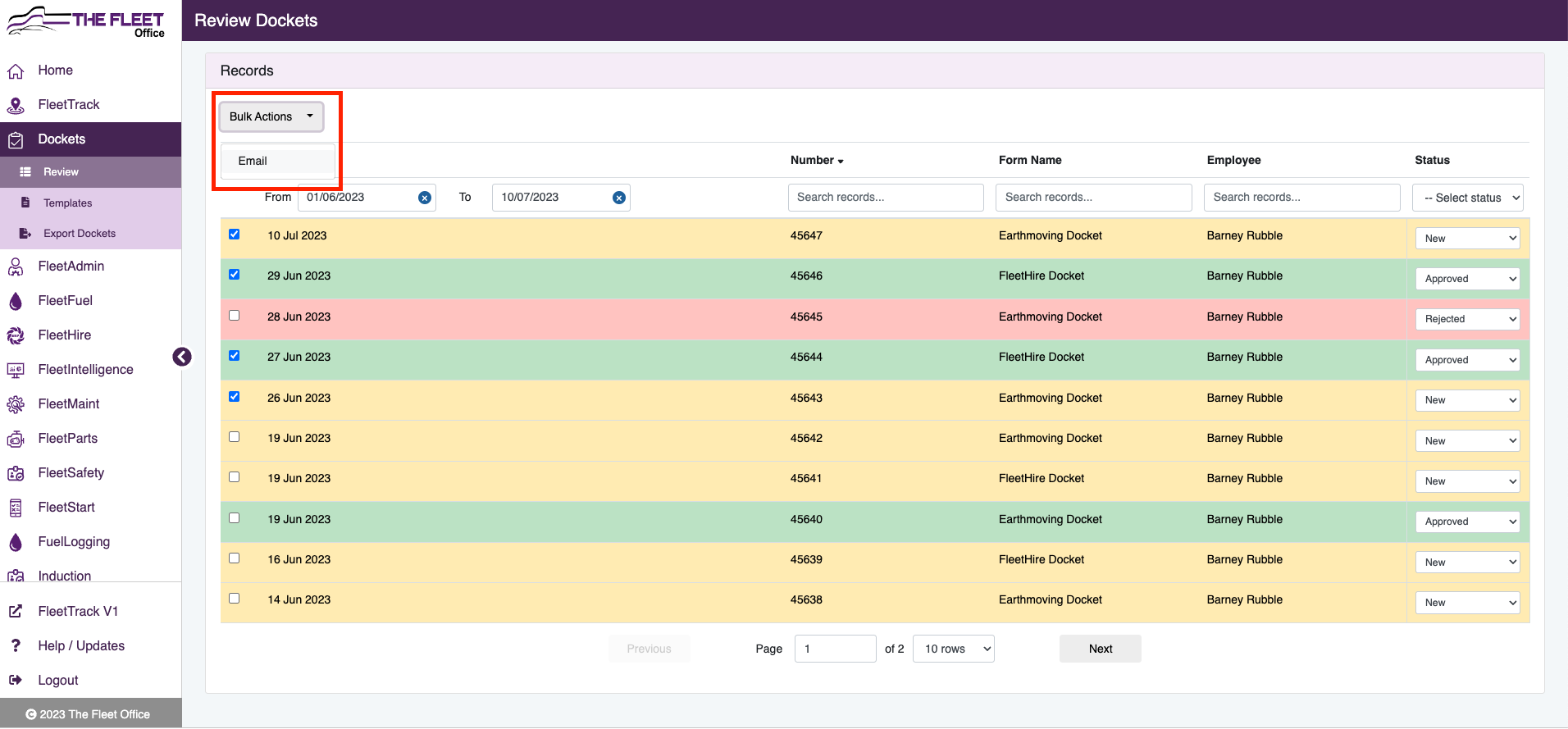
- Tick on required Dockets
- Click on Bulk Actions
- Choose Email
|
|
|
View / Send Docket |
- Select the required Email Template
|
|
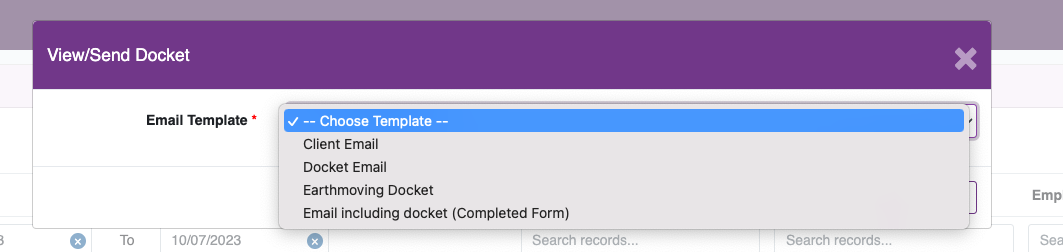
|
- Enter the email address - It is possible to add static emails into Email Templates
- Ensure you hit Enter or Tab - The email address will need to be boxed in purple
|
|
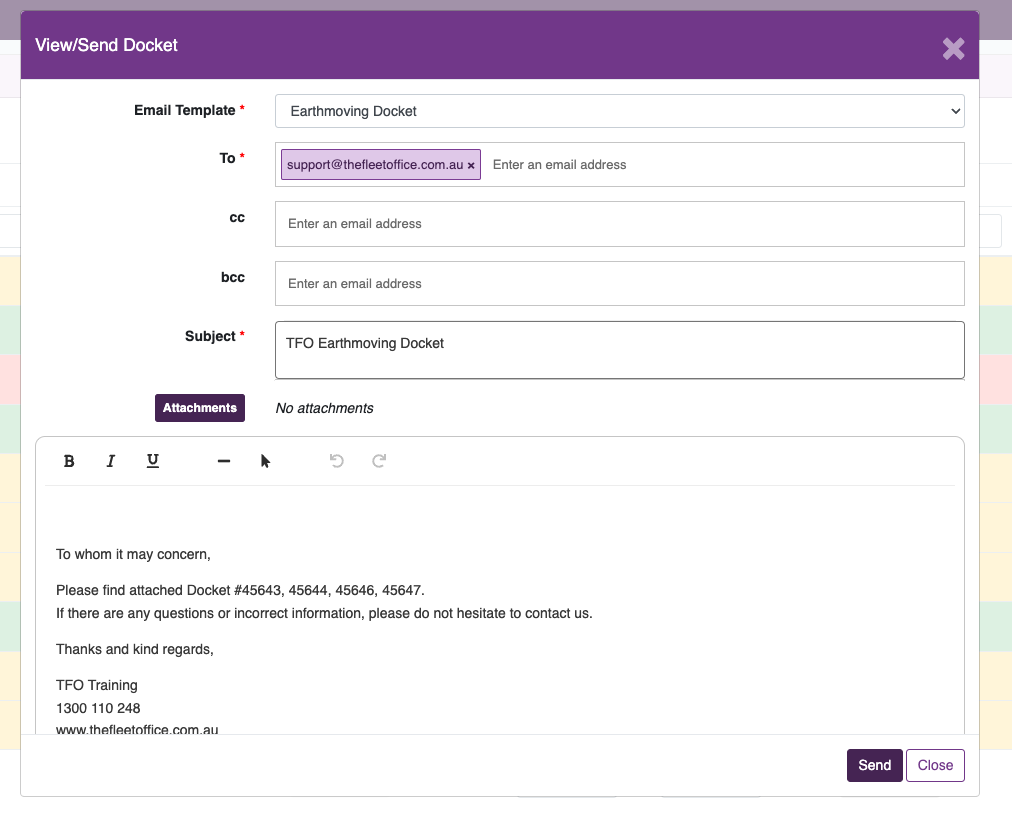
|
Adding Attachments to Emails |
|
|
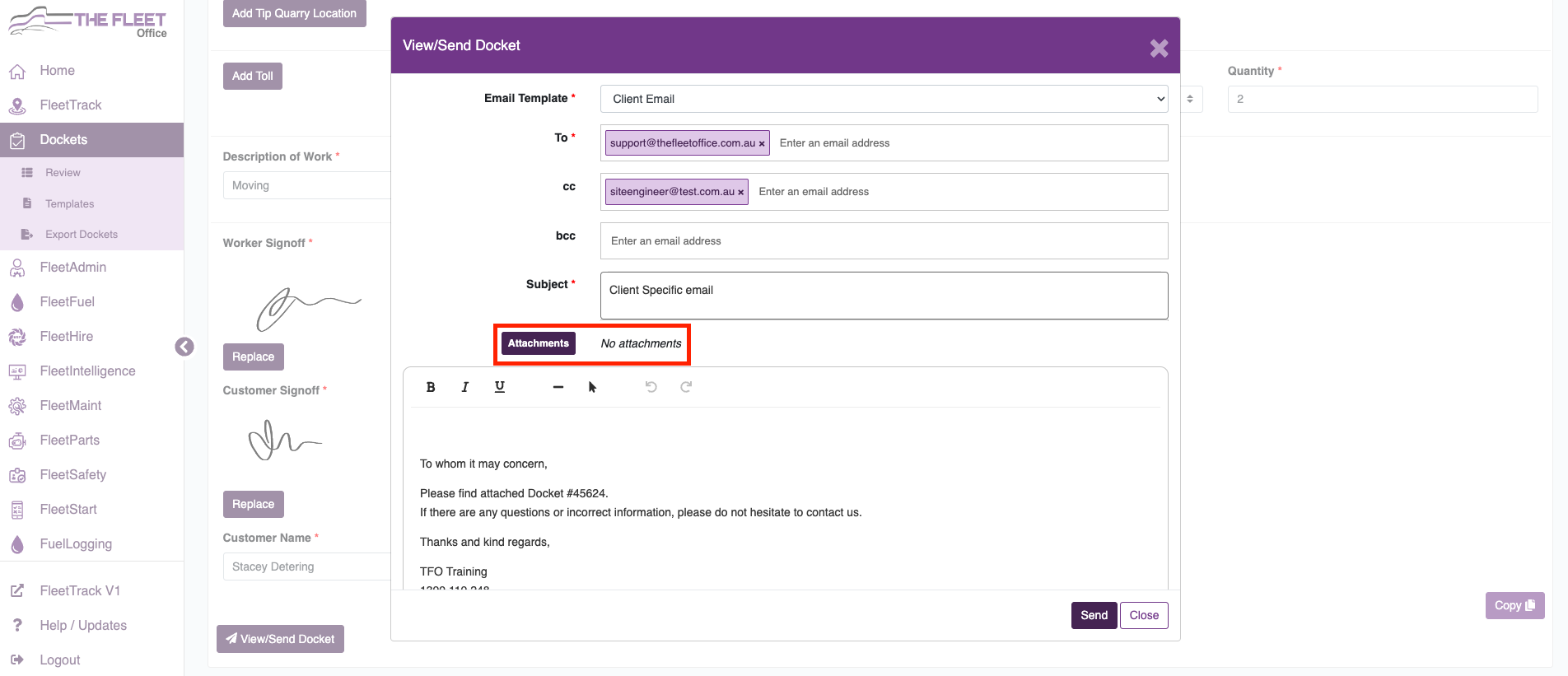
|
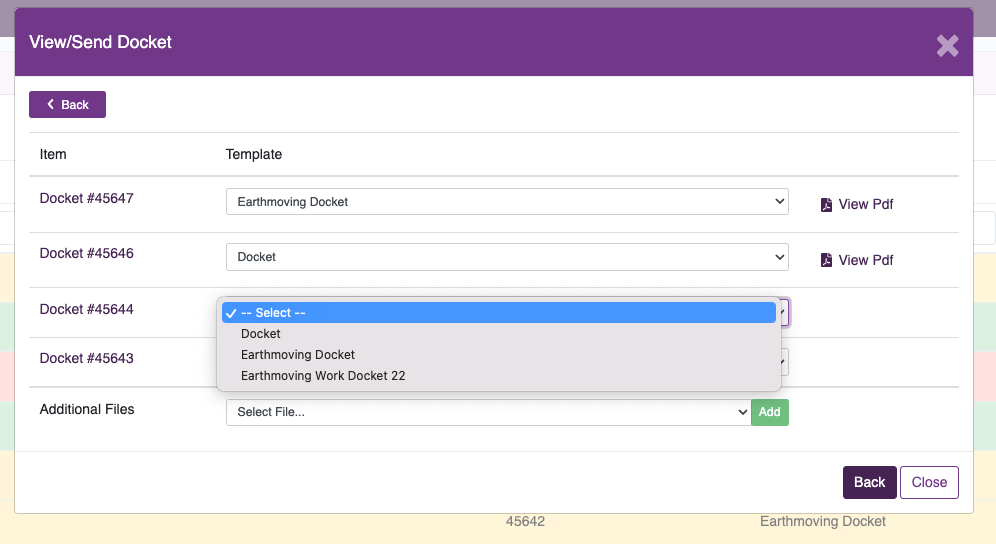
- Select the required Template from the dropdown
- If you have selected multiple Dockets, select a template for each
- Once templates have been selected you can View Pdf
|
|
|
- Additional files - Attach any images or forms that are required
- Click on back
- Selected Dockets will be listed in email & next to the attachments
- Click on send to email
|
Set up Auto Emails - Settings |
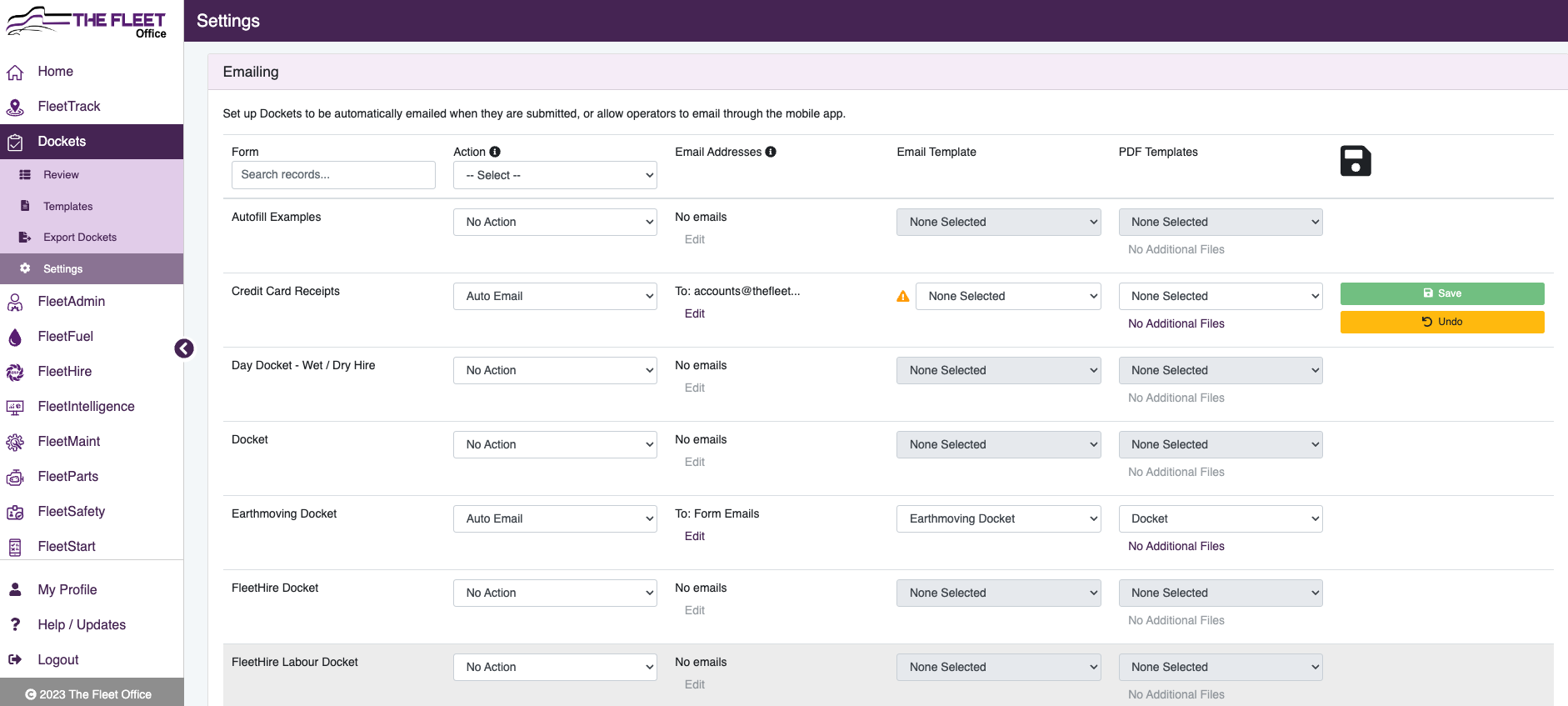
Set required Actions for each Form. Set email & PDF templates. Set each Docket form action & set emails directly from this page |
|
This will list out all of your Docket Forms, use the search bar to filter.
|
|
Action |
Set the email action for each Docket. |

|
| No Action |
Emails will not be sent from the system |
| Auto Email |
When a User submits a Docket, it will be automatically emailed. |
| Operator Email |
After a Docket is submitted Operators will be able to email from their mobile device. |
Email Addresses |
| Email Addresses |
Manual - Add Email Address to each docket
Automatic - Form fields with the role email will be
|
| Email Template |
Choose Email Template to be used in email |
| PDF Template |
Choose the PDF Template to be used in email
Add Additional Files to be included in Email as attachments
|
|
Exporting Dockets |
|
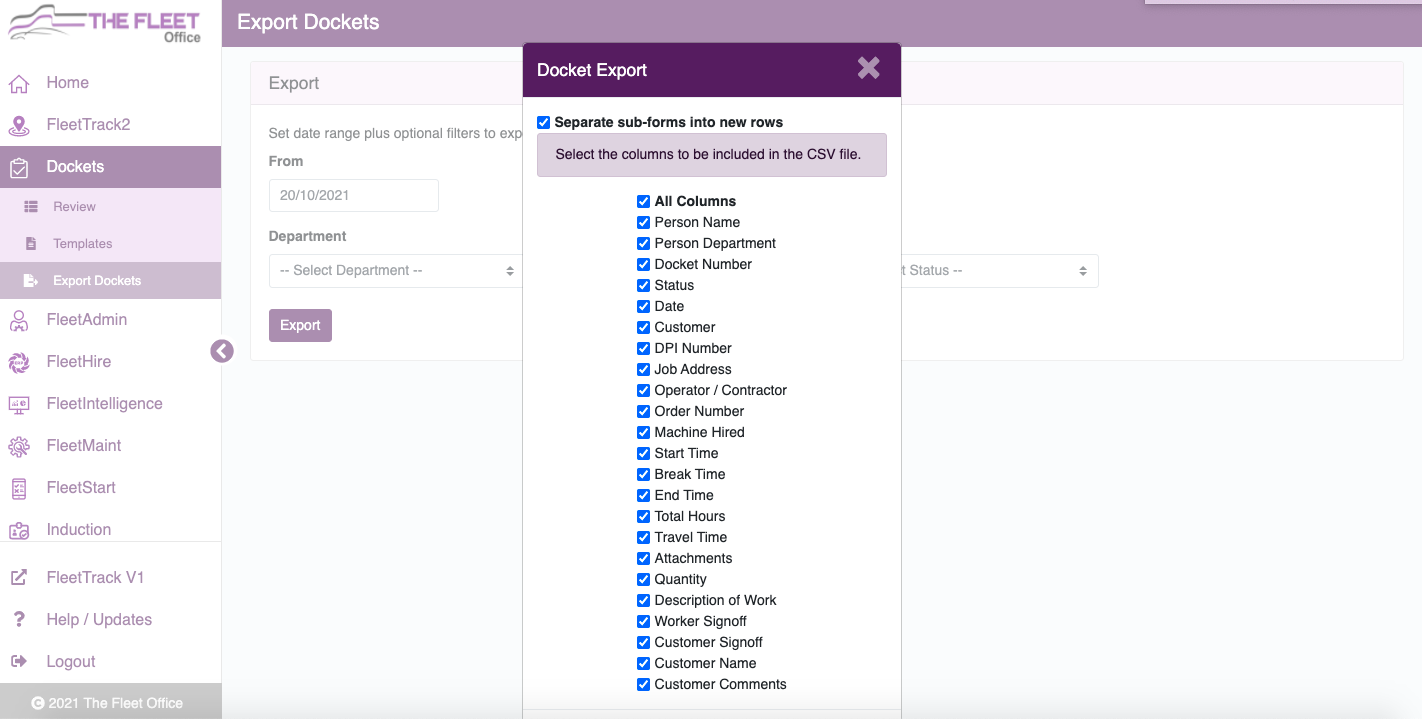
The export function allows you to export docket data into a CSV file.
- Click Export Dockets
- Use filters to collate required data
- Click Export
- Use checklist to include required columns
- Click Export
|
|
|