|
Use FleetSafety Forms to search & view completed FleetSafety Incident & Inspection Forms.
All Forms are created in FleetAdmin - Forms
Skip ahead within the article:
|
Search Safety Forms
|
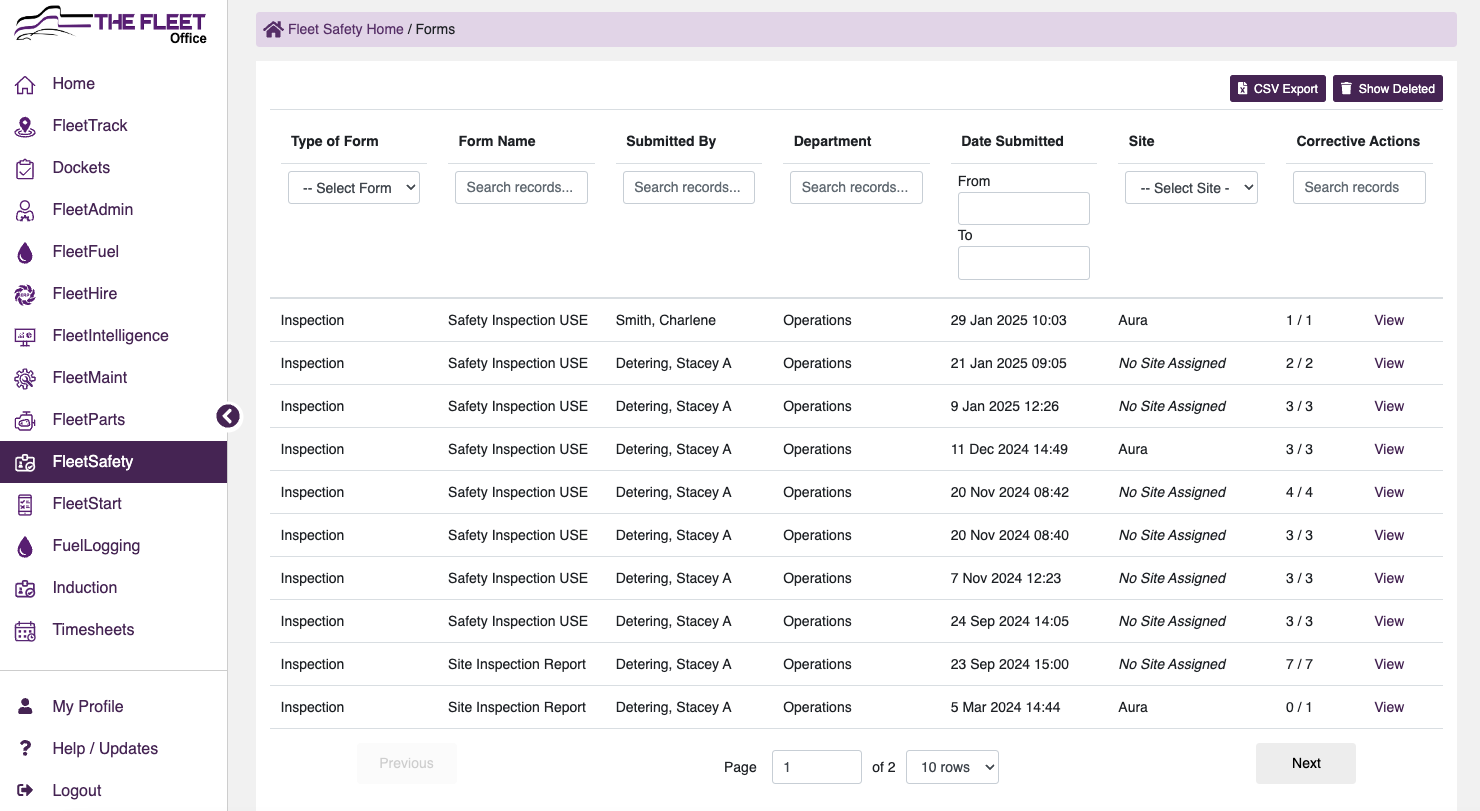
- Go to FleetSafety
- Forms
- Use filters to find required Safety Forms
- Click on line to view completed form
- Export to CSV by selecting the
 button button
|
 |
|
|
Delete Created Forms
|
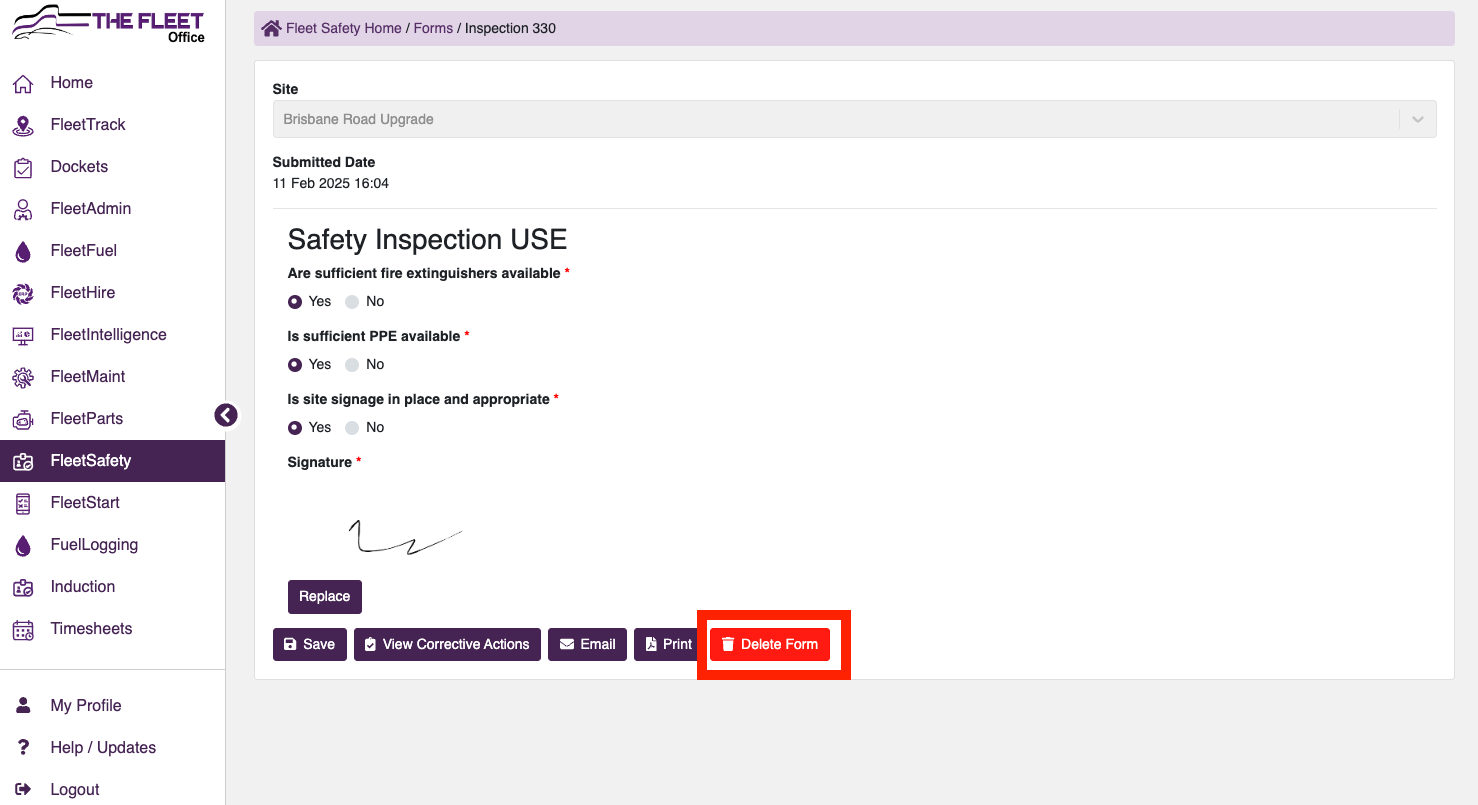
- Click into the form you want to delete
- Select Delete Form
|
 |
Viewing Deleted Forms
|
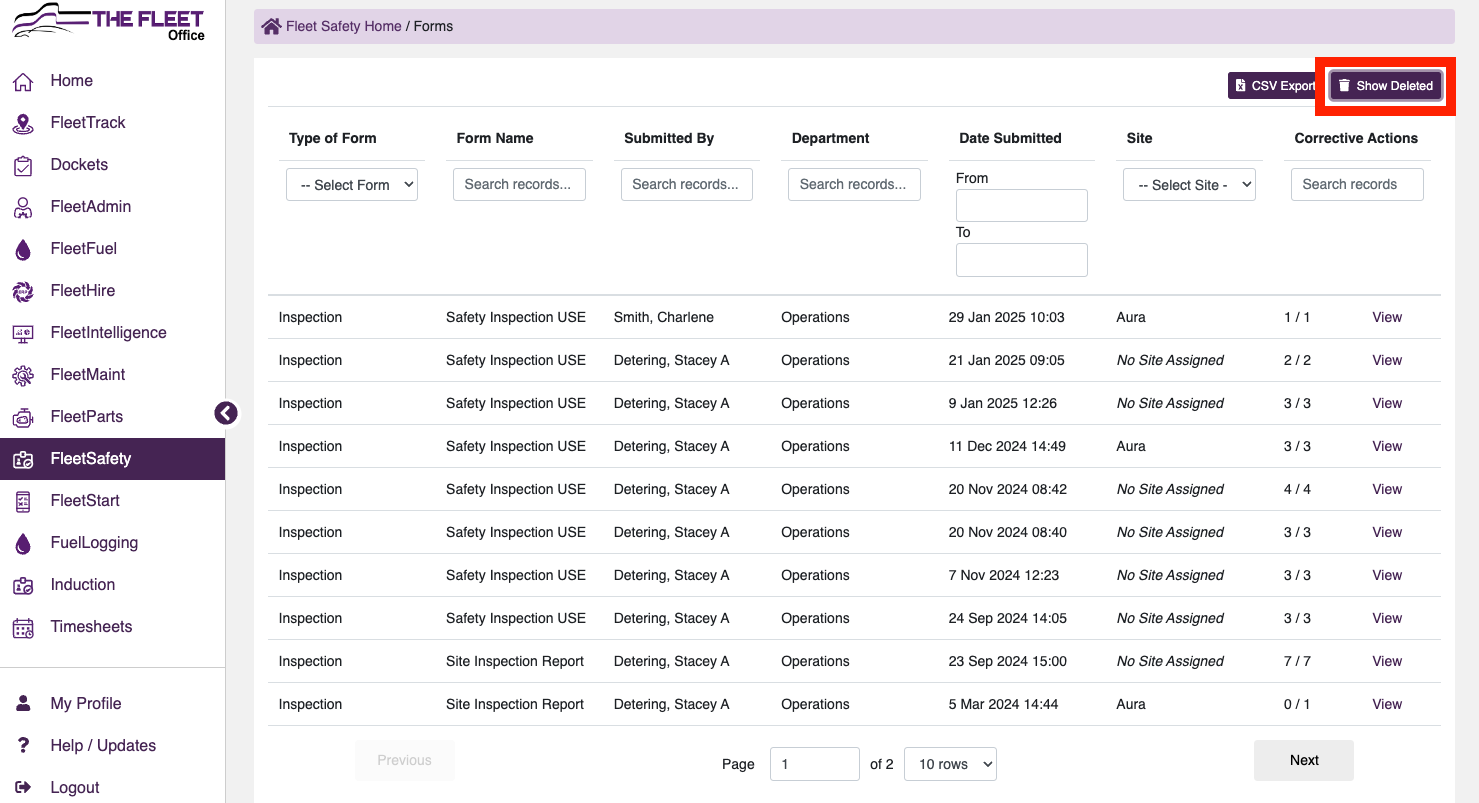
- To view deleted forms select 'Show Deleted'
|
 |
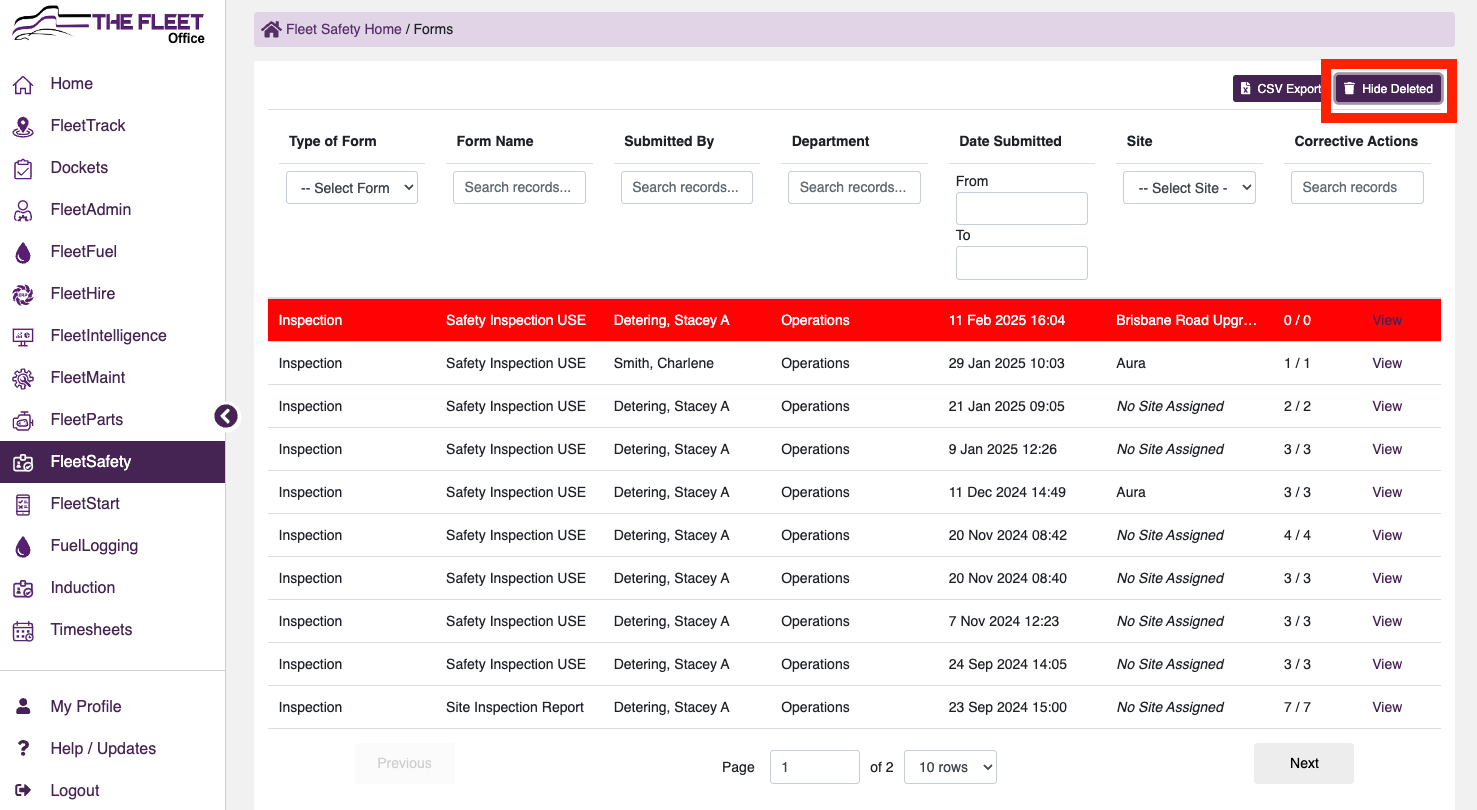
- Items that have been deleted will show highlighted red amongst the submitted forms
- to change view back select 'Hide Deleted'
|
 |
- To open a deleted item click into the form (highlighted red)
|
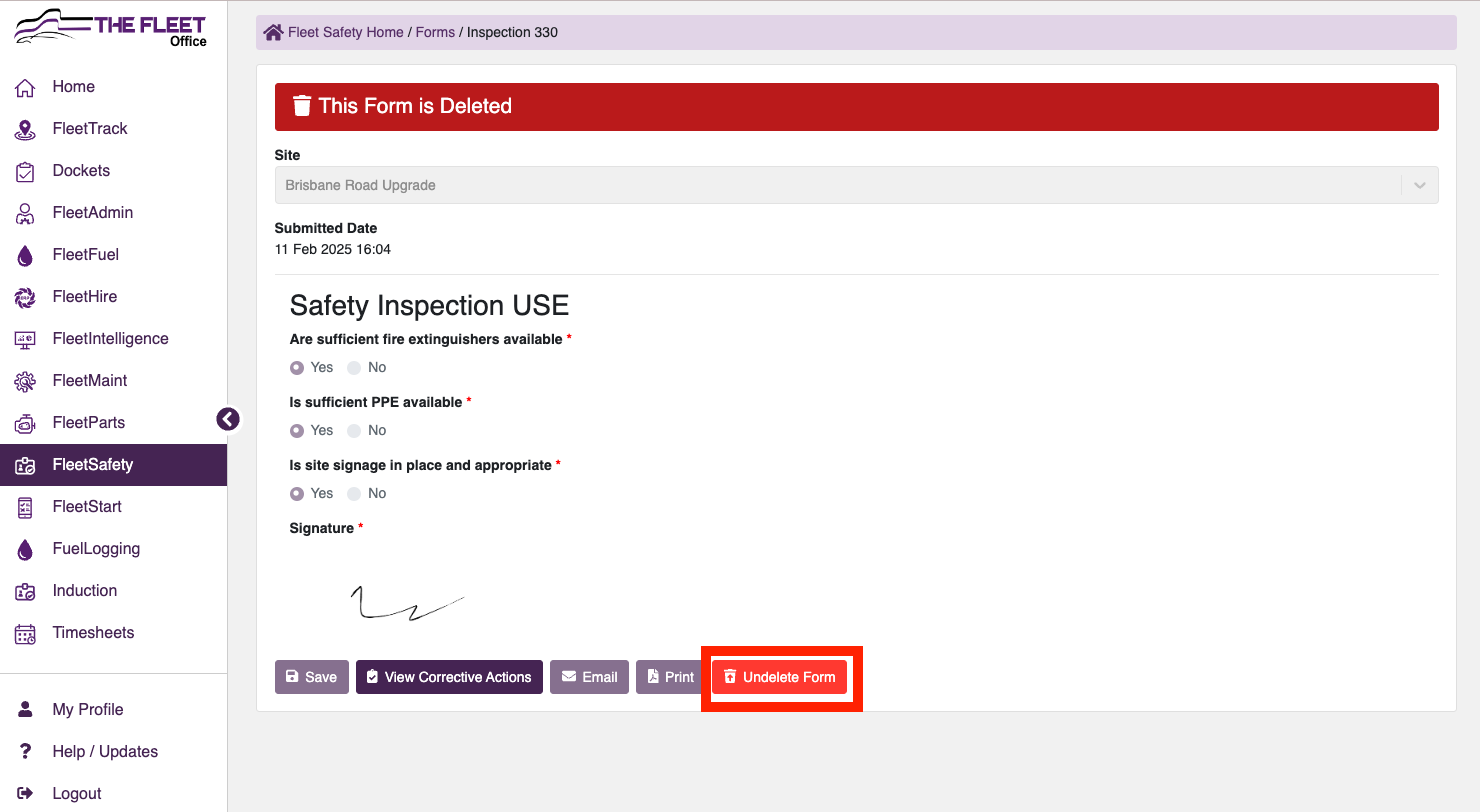 |
- You can view deleted from from here
- Please note you cannot email or print a deleted form
- You can 'Undelete form' by selecting 'Undelete Form'
- Once a form has been undeleted, you can then email or print if required.
|
Export Forms
|
| Forms can be exported into CSV format. |
- Select Form Type to enable the CSV DATA Export button
Please Note: Incident & Insepctions must be exported seperately
|
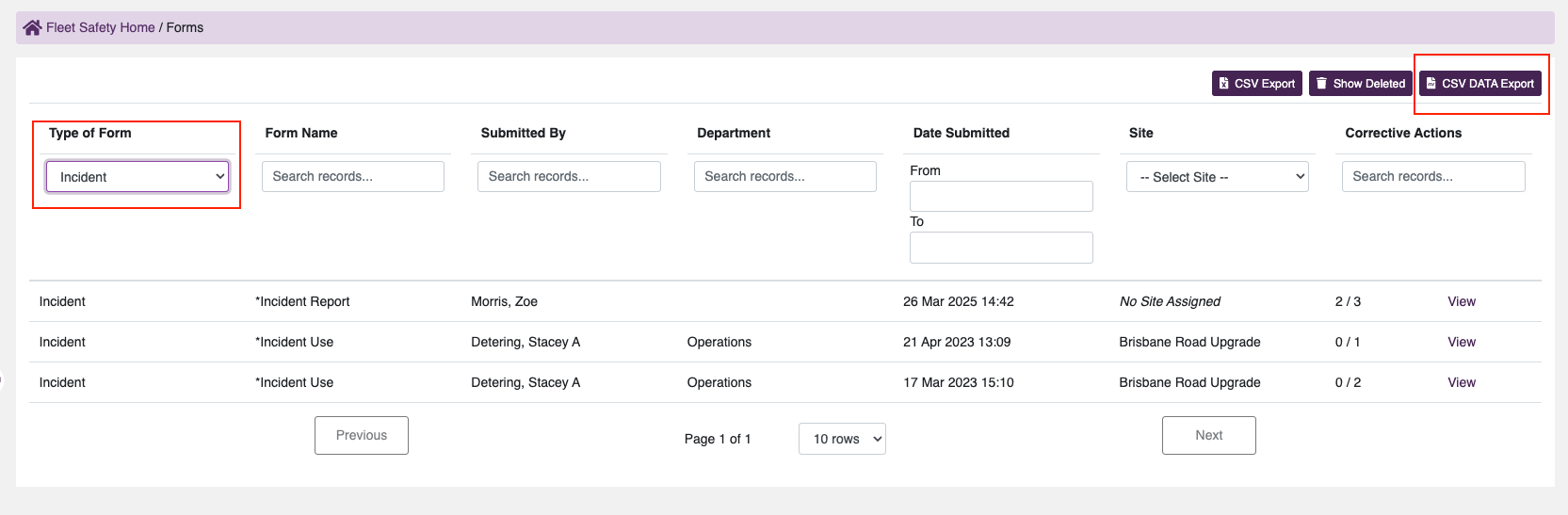 |
- Use filters to select required data
- Click on the CSV DATA Export button
|
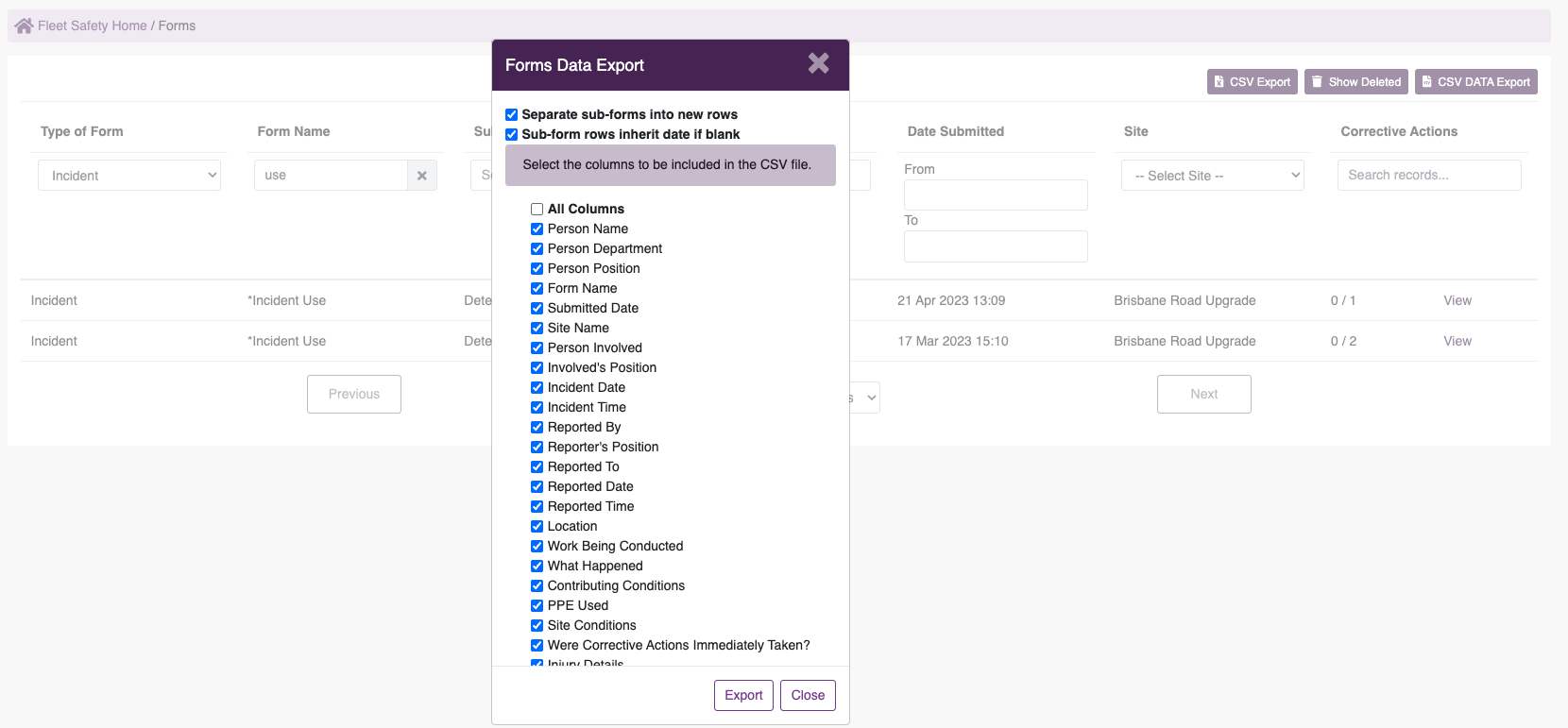 |
- Untick any Form Fields that are not required in the export
- Click Export
- The CSV document will download
|
| |
|
|